
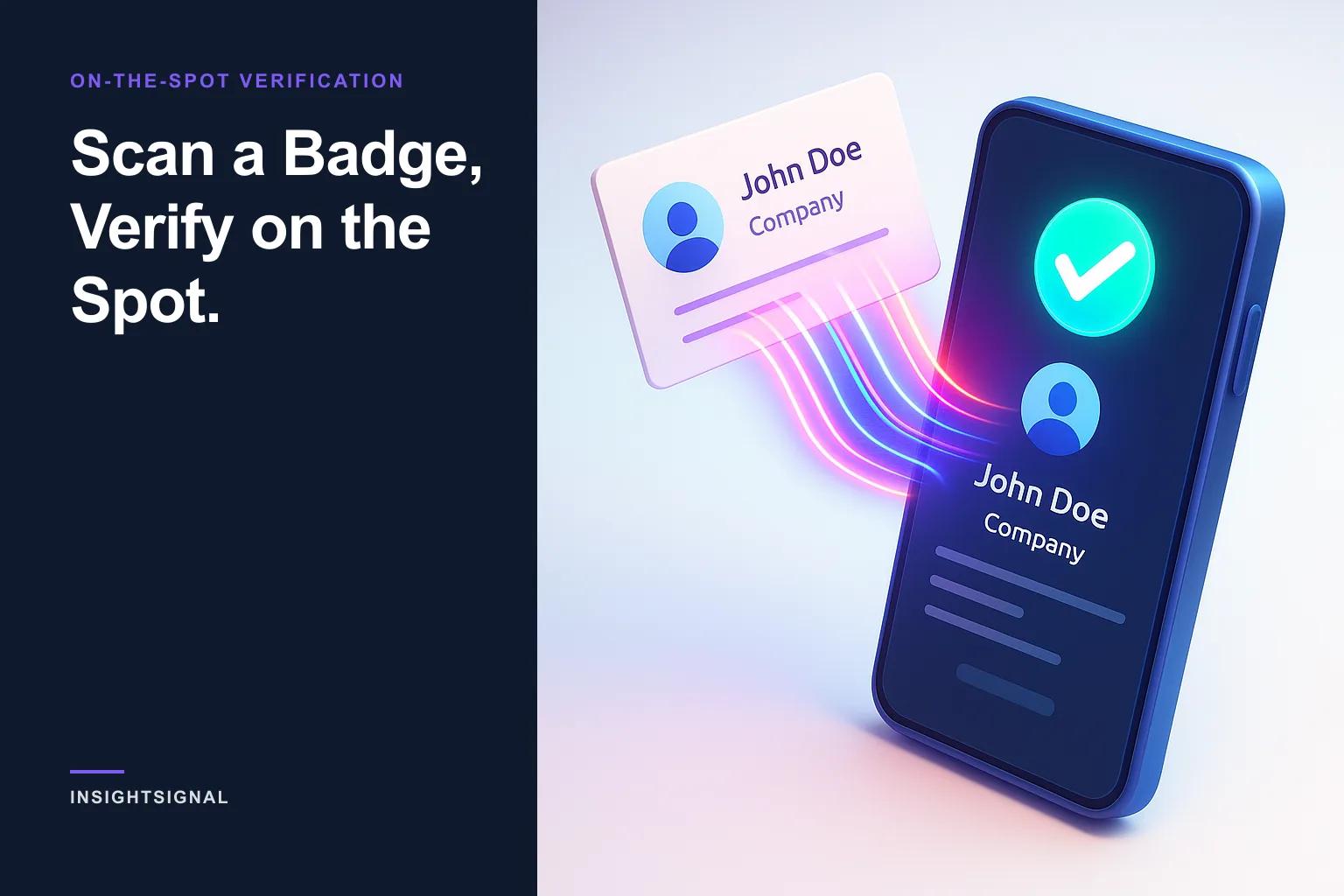
Scan a Badge, Verify on the Spot.
At a conference with a stack of business cards? Scan a card, a badge, or a LinkedIn QR with your phone and InsightSignal verifies the person and their company on the spot.
The most expensive thing at any conference is the follow-up you don't do
Every booth team comes home with the same trophy: a stack of business cards and a phone full of badge photos. Then the industry's dirty secret kicks in — by the long-cited CEIR figure, roughly 80% of trade-show leads are never followed up at all. Not because nobody cares, but because the leads sit in a pile until "Monday," get manually typed into a spreadsheet days later, and go cold before anyone reaches out.
Speed is the whole game. Harvard Business Review's classic analysis of 1.25 million leads found that companies which made contact within an hour were nearly seven times more likely to qualify the lead than those that waited just sixty minutes longer. The booth conversation is the warmest that lead will ever be. Scan Contact exists so you can act on it before it cools.
Three ways in
Scan Contact verifies a person and their company straight from whatever you're holding: a business card, a conference badge, or a QR code — captured with your phone camera. One person, on the spot, no spreadsheet.
How the scan works
- QR codes, automatically. The camera watches continuously for QR codes and processes one the instant it sees it — there's no button to press.
- Cards, with a tap. For a business card without a QR, tap Capture and AI extracts the text — name, title, email, phone, company.
- Prefer not to use the camera? Tap Upload Image and pick a photo from your device instead.
The LinkedIn QR shortcut
If the QR code holds a LinkedIn URL — the kind anyone can show straight from their LinkedIn app — InsightSignal looks up the profile and pre-fills the person's details for you. The fastest path from "nice to meet you" to a verified record is someone flashing their LinkedIn QR while you scan it.
Confirm, then verify
After a scan you get an editable form with the extracted fields. Review and fix anything the camera misread, then:
- Pick a persona and, optionally, add context — the same step as Quick Verify, so the analysis is framed around what you actually sell.
- Tap Verify. A progress screen shows real-time updates as InsightSignal checks the person and company across multiple independent sources.
- Open the full results — a persona-fit grade, intent reasoning, and the evidence behind it — the same verified profile you'd get from any other input.
Leave the booth with verified contacts, not a to-do list
The difference is when the work happens. Instead of a pile of cards that becomes a data-entry chore on Monday — by which point HBR's clock has long run out — you walk away from each conversation with a verified, graded contact already in your system. No manual typing, no "I'll clean it up later," no quietly joining the 80% who never follow up.
Conference season is exactly when this earns its keep. For more ways to put InsightSignal to work, see 5 ways to get the most out of InsightSignal and how sales teams use it for prospecting. Or book a demo and bring your stack of cards.
Sources
Copyright © 2024–2026 InsightOpus Inc.